
How These Tools Work
A quick guide to every tool in the MANY Ops Console
General Workflow
Every tool in this toolkit follows the same basic pattern:
- Enter the company name at the top of the page to tag your session.
- Work through the inputs — answer questions, fill in fields, or adjust sliders depending on the tool.
- Review your results — each tool generates tailored outputs: scores, frameworks, plans, or projections.
- Print to PDF — use the Print button in the top-right corner to save or share your results as a PDF.
Using the Additional Information & Knowledge Base
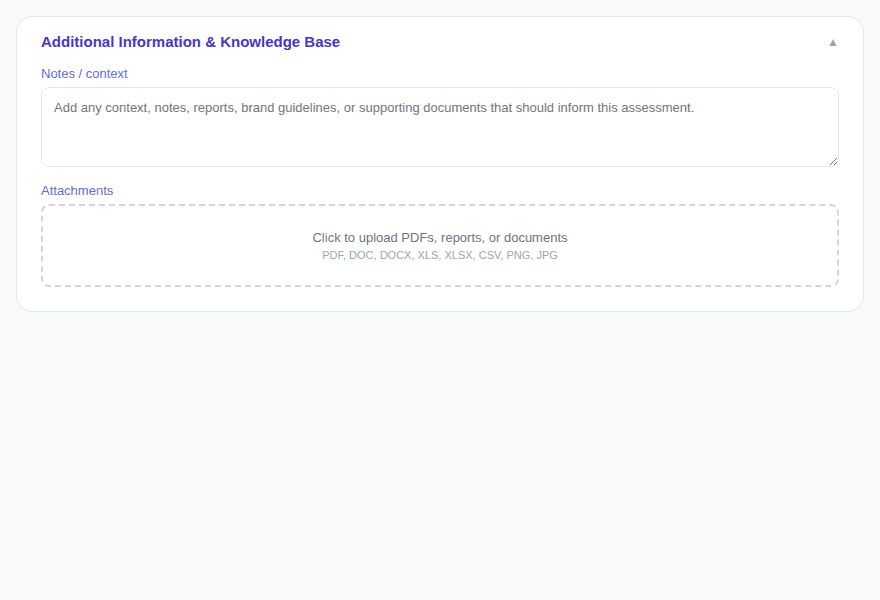
At the bottom of every tool, you'll find the Additional Information & Knowledge Base section. Use it to provide context that helps inform the assessment:
Notes / Context
Type or paste any relevant context — meeting notes, strategy briefs, competitive intel, brand voice guidelines, or anything else that should be considered during the assessment.
Attachments
Click the upload area to attach PDFs, reports, brand guidelines, analytics exports, or other supporting documents. These files stay with your session and give the tool richer context to work with.
The more context you provide, the more useful your results will be. If you have existing brand kits, marketing plans, or performance reports — upload them here.
Tool-by-Tool Guide
- Enter the company name at the top of the page.
- Answer each question about your budget, goals, timeline, audience, and current channel mix.
- The tool builds a minimum viable channel plan based on your actual constraints — not assumptions.
- Review your recommended channel plan and priority actions.
- Enter the company name.
- Rate your presence across each LOOP-based marketing dimension on a 1–5 scale.
- The audit identifies blind spots and gaps in your marketing presence.
- Review your scores and the personalized 3-month growth roadmap.
- Enter the company name.
- Answer diagnostic questions across four pillars: Offer, Positioning, Messaging, and Tech.
- The tool detects which pillar is your primary growth constraint.
- Review your constraint diagnosis and recommended next steps.
- Enter the company name.
- Evaluate 11 drift signals to see if your messaging has fallen out of sync with your actual expertise.
- Each signal is scored and weighted.
- Review your drift score, flagged signals, and the authority realignment framework.
- Enter the company name.
- Work through each layer of the Universal Offer STACK™ framework: Solution, Trust, Attraction, Clarity, Kindle.
- Fill in specifics for each layer — what you offer, proof points, hooks, clarity checks, and urgency drivers.
- Review your complete offer stack, ready to use in sales pages, proposals, or pitches.
- Enter the company name.
- Build your niche positioning across 5 layers using the Niche Stacking Framework™.
- Define your audience using VALS psychographics and align messaging to each segment.
- Review your complete niche stack with positioning and messaging alignment.
- Review the LOOP framework overview: Learn, Optimize, Operate, Progress.
- Fill in your marketing plan inputs and outputs for each phase.
- Use the interactive KPI Scoreboard, Time Allocation, and Activity Map on the dashboard.
- Work through the Operator's Master Checklist and use the built-in Task Reality Check chat for AI-powered guidance.
- Enter your business context: name, industry, business model, stage, key metrics, and challenges.
- Explore the 5-phase framework: Observe, Diagnose, Decide, Act, Loop — each with copy-ready prompts.
- Launch the Operator Console to get AI-powered analysis tailored to your business context.
- Use the chat interface to ask questions, get diagnoses, and build action plans.
- Enter the company name and choose Simple ROAS or Nurturing Funnel mode.
- Fill in your campaign inputs: ad spend, CPC, conversion rate, closing rate, and average revenue per customer.
- Optionally break down ad spend by platform (Google Search, Google Display + YouTube, Meta, Native, Other).
- Review real-time projections: clicks, leads, customers, ROAS score, unit economics, and what-if sensitivity analysis.
- Enter the SOP title, company, owner, purpose, frequency, scope, and tools used.
- Build out phases — each with numbered steps and optional notes or warnings.
- Add governance rules (behavioral standards that always apply) and a deployment checklist.
- Switch to Preview mode to see the formatted SOP, then Print to PDF or Copy Markdown.
Questions or Issues?
If you run into any problems or have questions about how to use these tools, we're here to help.
Visit Support